SAME IMAGE. THREE DIFFERENT RESULTS.
YouTube thumbnail aspect ratio.
Use 16:9 for a standard YouTube video thumbnail. If your source has another shape, choose Fit to keep the whole image with padding, or Fill to crop it. Stretching fills the frame by distorting the image.
For custom Shorts thumbnails, YouTube recommends 9:16; podcast playlist artwork uses 1:1. YouTube Help, checked September 23, 2026.
Compare Fit, Fill and Stretch ↓Try Fit or Fill in the resizer →
A ratio describes shape, not sharpness
16:9 means 16 units of width for every 9 units of height. A 1280 × 720 image, a 1920 × 1080 image and a 3840 × 2160 image all have that shape. They do not contain the same amount of detail. Changing a file's aspect ratio and changing its encoded file size are also different operations.
YouTube currently recommends 3840 × 2160 for video thumbnails. The 1280 × 720 frame in the experiment below is a convenient fixed test canvas, not a replacement for that recommendation. See the dated thumbnail specification table for resolution and upload limits.
Our 4:3-to-16:9 experiment
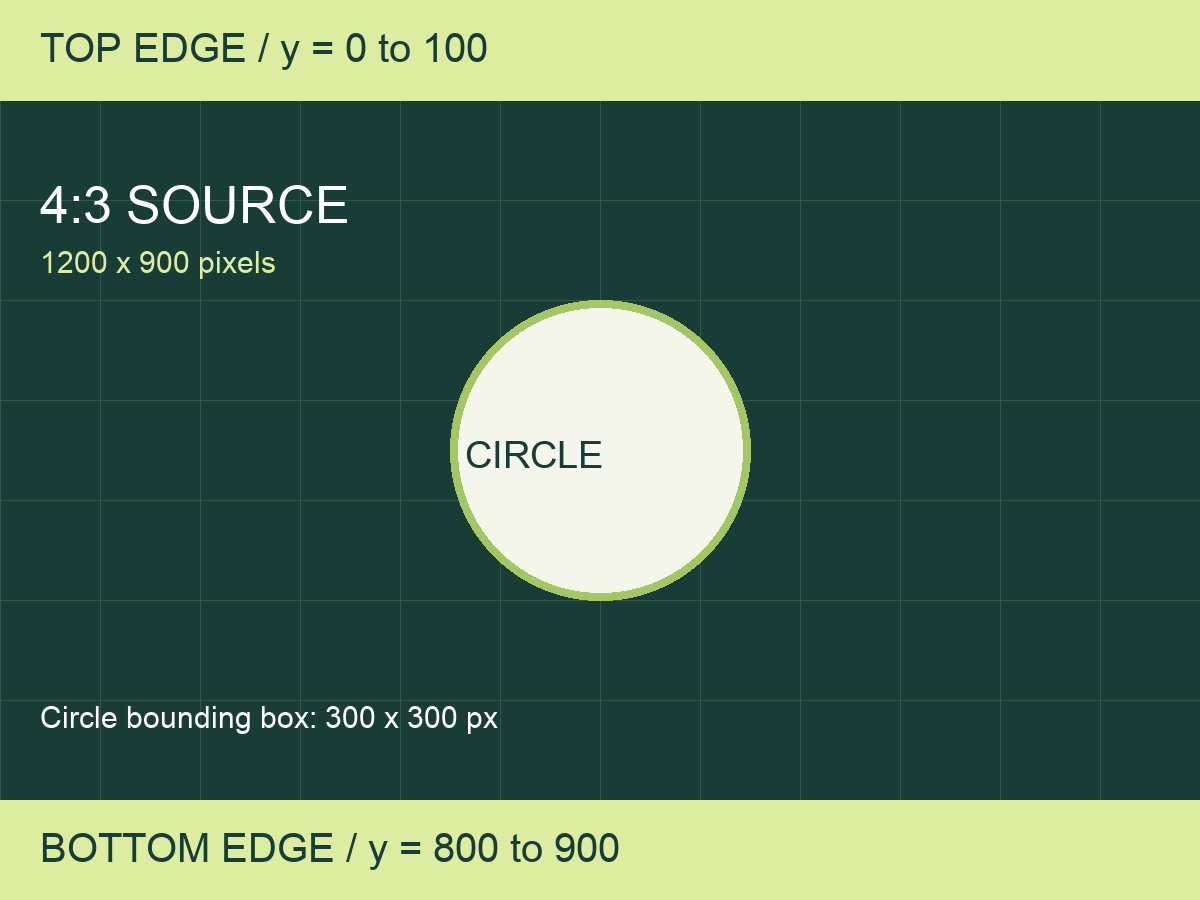
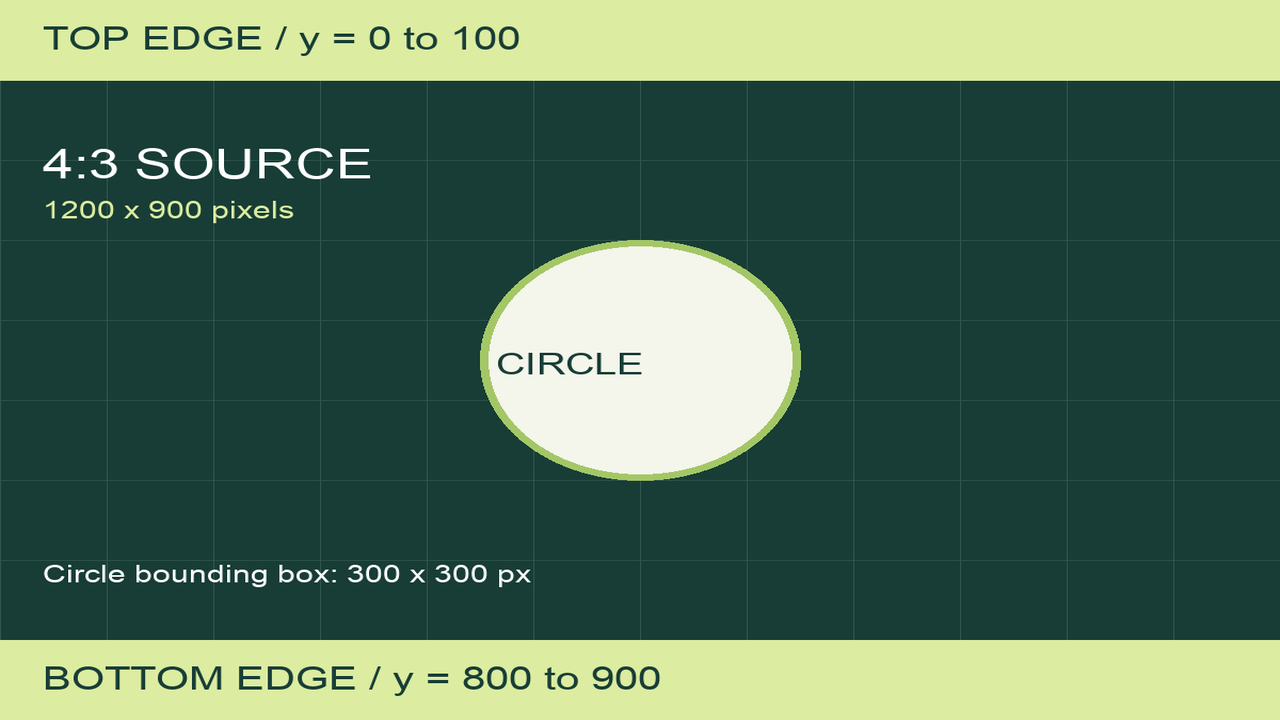
We made one original 1200 × 900 PNG with a coordinate grid, a central circle and labeled bands along its top and bottom. The bands reveal what a crop removes; the circle reveals distortion. We then placed the same source into a 1280 × 720 frame three ways. None of these images is a screenshot of YouTube.
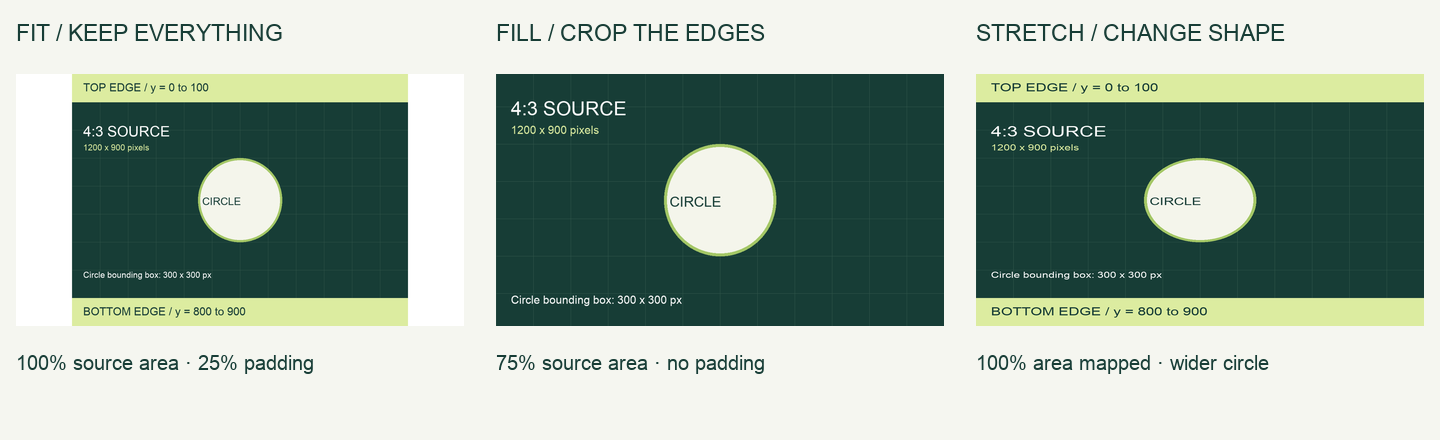
| Method | Source area mapped | Empty frame area | Circle bounds after mapping |
|---|---|---|---|
| Fit | 100% | 25% | 240 × 240 px |
| Centered Fill | 75% | 0% | 320 × 320 px |
| Stretch control | 100% | 0% | 320 × 240 px |
“Source area mapped” is a geometric coverage measure, not a claim that every original pixel remains unchanged. All three transformations resample the image. Circle bounds are calculated from the source's 300 × 300 coordinate box; anti-aliased edge pixels are not counted as a separate measurement.
Fit: preserve the picture, leave room around it
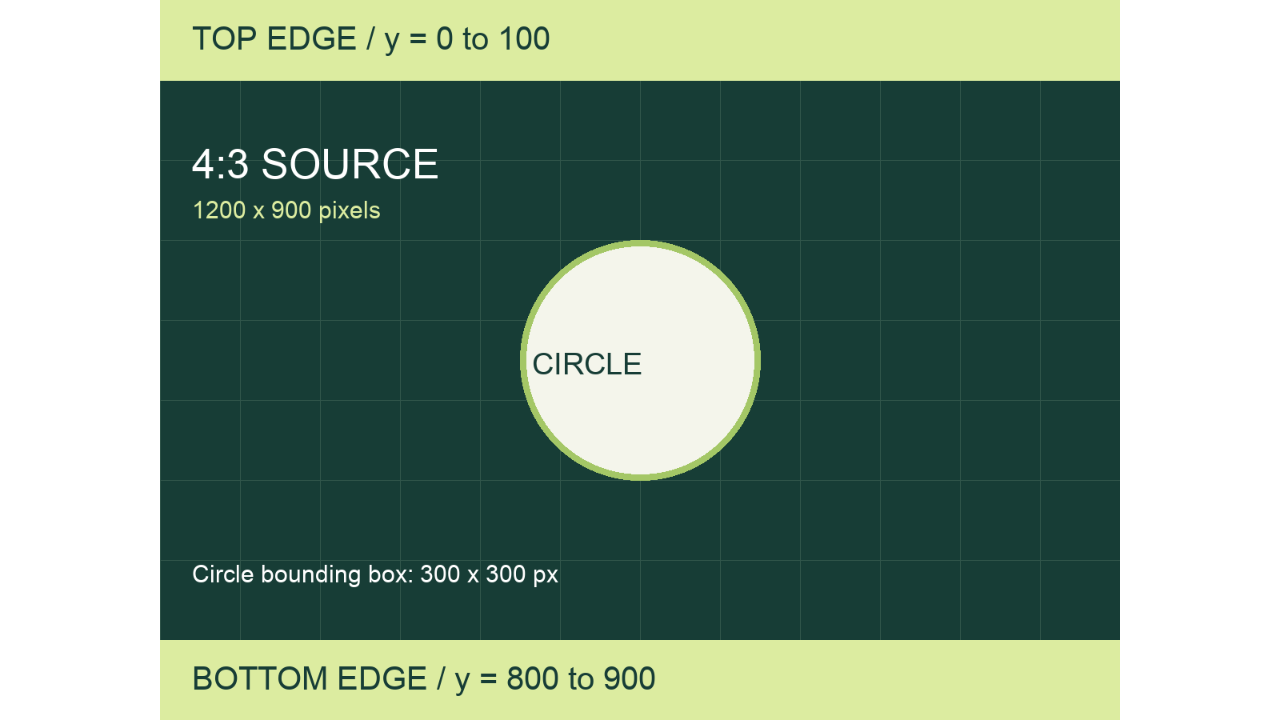
The source is relatively taller than the destination. To fit the whole image, scale it by the smaller of the width and height ratios: min(1280 ÷ 1200, 720 ÷ 900) = 0.8. This produces an image rectangle of 960 × 720 pixels. Centering it leaves (1280 − 960) ÷ 2 = 160 pixels of padding on each side.
Destination image rectangle: x = 160, y = 0, width = 960, height = 720
Padding area: 2 × 160 × 720 ÷ (1280 × 720) = 25%
The top and bottom labels survive, and the circle stays circular. The tradeoff is that the image uses only three quarters of the frame area. The padding is part of this exported thumbnail file. It is not a prediction that YouTube will add its own bars.
Fill: use the whole frame, give up some edges
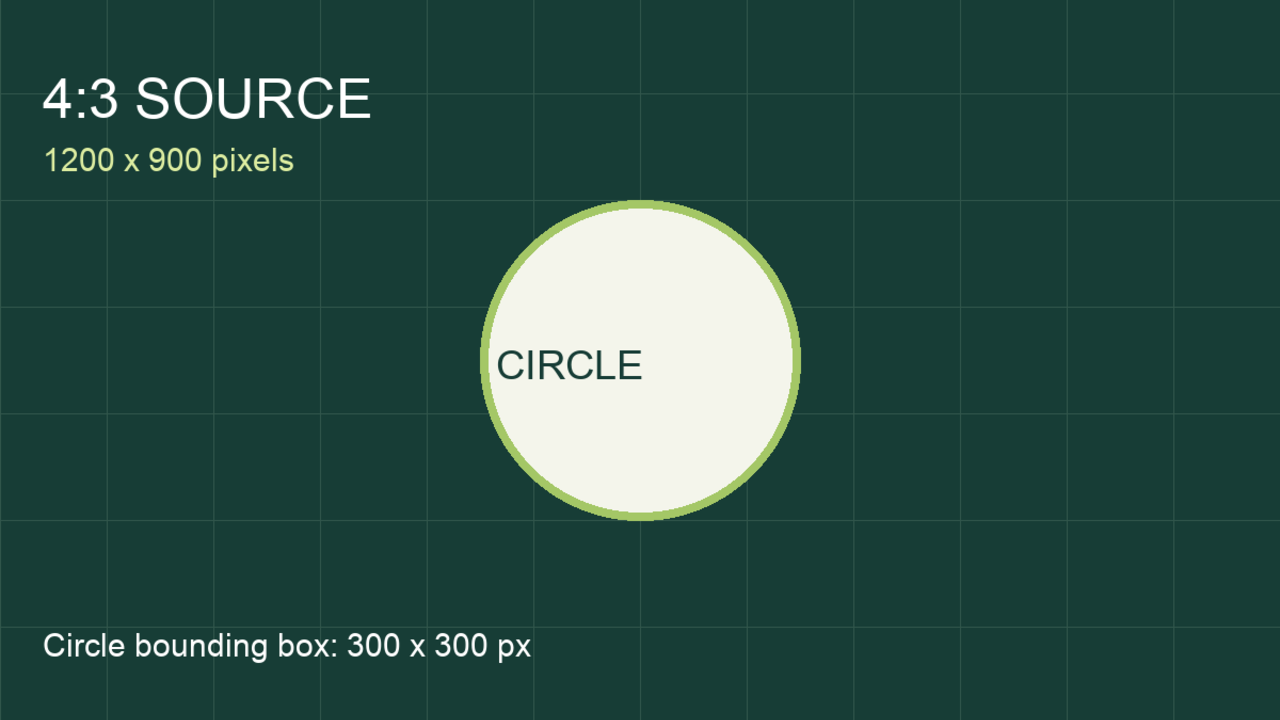
To cover the destination, use the larger scale: max(1280 ÷ 1200, 720 ÷ 900) = 16/15. The scaled image is 1280 × 960. A centered 720-pixel-high frame therefore cuts off 120 scaled pixels above and another 120 below.
Convert that crop back into source coordinates by dividing by 16/15. Each removed strip is 112.5 source units high. The retained source rectangle runs from y = 112.5 to y = 787.5, with its full 1200-pixel width. Its height is 675, so it contains 675 ÷ 900 = 75% of the original source area.
Source rectangle: x = 0, y = 112.5, width = 1200, height = 675
Destination rectangle: x = 0, y = 0, width = 1280, height = 720
The circle keeps its shape, but both labeled edge bands disappear. This makes “check the crop” concrete: content above y = 112.5 or below y = 787.5 does not survive this centered crop. Repositioning a crop changes which content survives; it does not change the amount of area kept at this fixed source and destination ratio.
Stretch: no missing edges, but a different shape
The stretch control maps the full source directly to the destination. Horizontal scale is 1280 ÷ 1200 = 16/15; vertical scale is 720 ÷ 900 = 0.8. Their ratio is 4/3. Objects become one third wider relative to their height, so our circle's 300 × 300 coordinate box becomes 320 × 240.
All the bands remain visible and no padding is needed. Neither fact means the result preserves the design. Faces, product shapes, circles and lettering can all look wrong when the two axes use different scale factors. This control is included to explain the failure mode; ThumbGlance's resizer offers Fit and Fill rather than a Stretch option.
What we measured, and how to repeat it
The Fit and Fill PNGs were encoded by our current resizer in a Chrome 153 browser on macOS on September 23, 2026. A local test harness loaded the original source, selected PNG, kept the 1280 × 720 output and recorded the Canvas drawImage arguments. The recorded Fit destination was [160, 0, 960, 720]; Fill used source [0, 112.5, 1200, 675] and destination [0, 0, 1280, 720]. These recorded values match the calculations above.
The Stretch control was generated separately with Pillow's Lanczos resize. It is not a hidden resizer feature or a YouTube test. The comparison panel scales the three results for reading on this page; download the individual PNGs to inspect the full output. Resampling filters and browser versions can change edge pixels without changing the geometric rectangles.
Download the geometry table and SHA-256 file hashes · Read the browser experiment record
- Download the original 1200 × 900 sample and open the resizer.
- Select 1280 × 720, Fit and PNG. Check for the two side bars and both edge labels.
- Switch only Image placement to Fill. The edge labels should disappear while the circle stays round.
- Try your own image and inspect the subject and text before exporting. A numerical area percentage cannot tell you whether the lost part matters.
This is a controlled geometry example, not a ranking experiment, readability score or universal safe area. It does not establish how every YouTube surface crops an image. For vertical videos, the official help page describes a separate 4:5 auto-generated-thumbnail rule on selected surfaces; that is not the same operation as our centered Fill example.
Questions, answered
Are 1280 × 720 and 1920 × 1080 the same aspect ratio?
Yes: both are 16:9. They differ in pixel dimensions. Check shape separately from resolution and file size.
Can I turn a square or 4:3 image into 16:9 without losing anything?
You can preserve the whole composition by fitting it inside a 16:9 canvas and adding padding. Filling the canvas requires cropping, extending the design, or distorting it. These are different choices.
Why does my face look wider after resizing?
If width and height were scaled by different factors, the image was stretched. Use proportional Fit or Fill, then inspect the result.
Does 16:9 guarantee no crop anywhere on YouTube?
No. Upload guidance and display behavior are different. Layouts, vertical-video rules and interface overlays can affect what viewers see. Our tester is a simulation, not a live feed.
Watch the comparison
A short walkthrough of our original examples, with a synthetic English voice and English captions. The figures are controlled tests, not YouTube screenshots.