 ThumbGlance
How to Change a YouTube Thumbnail
For a regular video, change the thumbnail in YouTube Studio on a computer or in the YouTube Studio app on your phone. For a Short, upload a custom image in YouTube Studio on a computer.
Regular video: computer
Official steps · YouTube Help checked November 10, 2026. A verified account is required for a custom thumbnail. Desktop instructions.
- Sign in to YouTube Studio and open Content.
- Select the video to edit.
- Under Thumbnail, choose Upload file, select your image, and choose Save.
Regular video: Android or iPhone
Official steps · YouTube Help checked November 10, 2026. A verified account is required for a custom thumbnail. The Studio app steps are the same in the Android and iPhone/iPad instructions.
- Open the YouTube Studio app and tap Content.
- Select the video, tap Edit, then Edit thumbnail.
- Choose Custom thumbnail, select the image, tap Select or Done as shown, then Save.
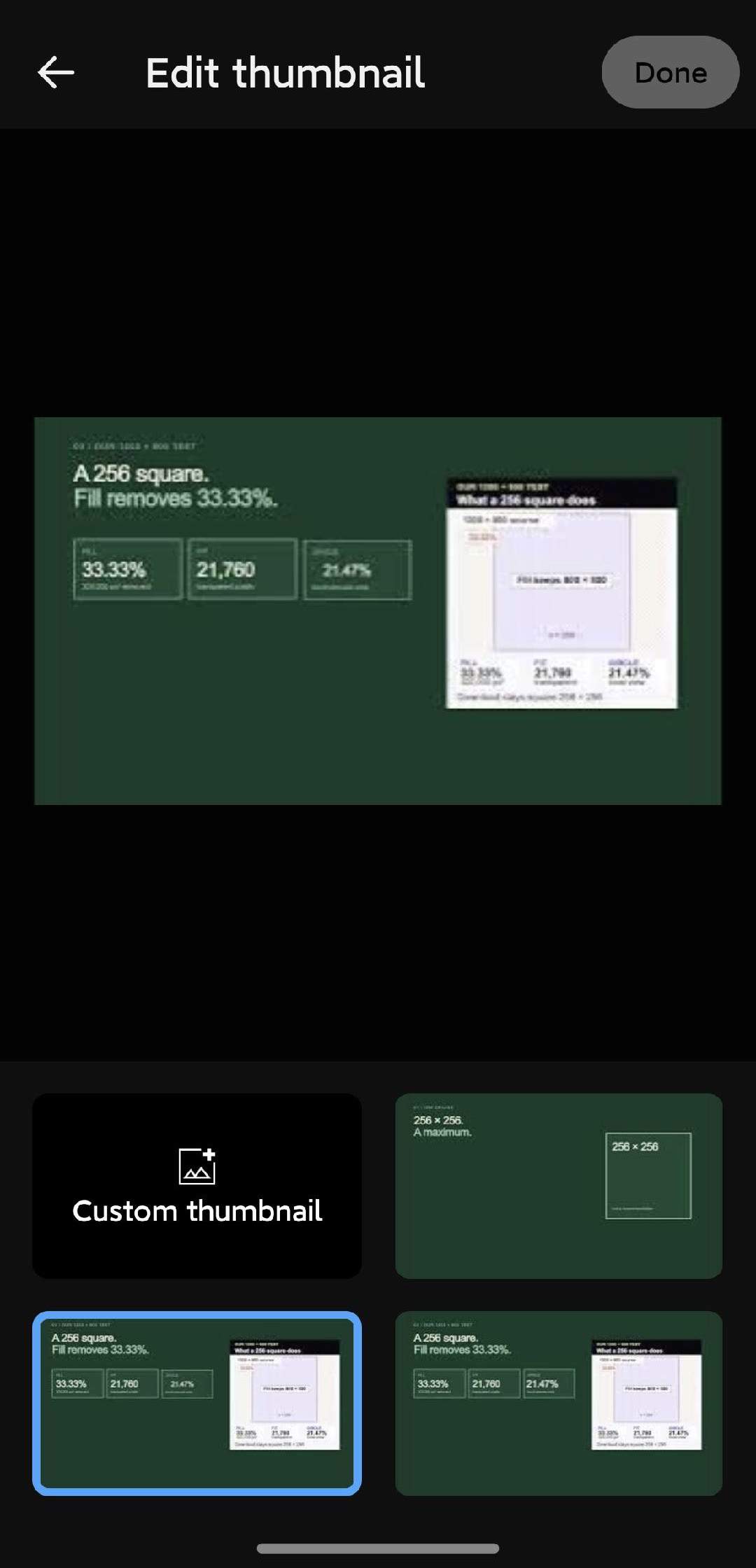
In the YouTube app, open your profile picture, choose Your videos, then More and Edit beside the video. Tap Edit thumbnail, choose the image, tap Select, and save.
Shorts: computer
Official steps · YouTube Help checked November 10, 2026. YouTube currently directs creators to a computer and YouTube Studio to upload a custom Shorts image. A verified account is required. Desktop instructions.
- Sign in to YouTube Studio and open Content.
- Choose Shorts, then select the Short to edit.
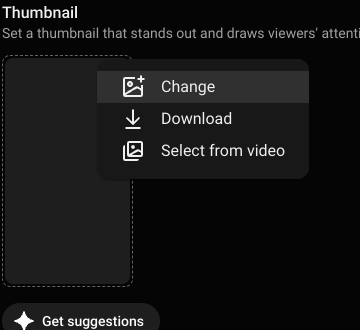
- Under Thumbnail, choose Upload file, select your image, and choose Save.
YouTube recommends a 9:16 image for a Shorts thumbnail. Its guidance also says that when a vertical video uses a 16:9 custom thumbnail, Home, Explore and Subscriptions display an automatically generated 4:5 thumbnail instead. The custom image remains visible in the watch feed, watch history and on non-mobile platforms. This condition concerns vertical videos with a 16:9 custom thumbnail.
When does the new image appear?
YouTube says thumbnail changes may take time to appear. The time depends on where you look; check the actual surface your viewers use.
In our earlier controlled observation on October 9, 2026, we saved image B over image A on one Short at 06:01:22 UTC and checked from one Mac on one network. Studio showed B when reopened at 06:02:36; one image address first returned B after 12 seconds. At 06:13:53, 12 minutes 31 seconds after saving, our first manual request to the channel page’s sardefault image address returned B. We had checked other channel-page images before saving and 12 seconds after saving. The image at another address alternated between A and B during the first few minutes. These are first observations for one change, not a fixed delay. Checks were 13 to 79 seconds apart for the first 45 minutes, except for one 120-second gap; later checks were 129 to 155 seconds apart. Each time is the first observed result, so the change occurred between checks. The phone app was not tested.
See the full timeline and observation log. If the old image remains, use the thumbnail troubleshooting guide.
Compare two designs
A visual preview helps you inspect a single design. YouTube's A/B test compares eligible alternatives on a computer using watch time share; click-through rate measures a different outcome. Shorts are not eligible for this test. See YouTube's A/B guidance and our thumbnail test guide for a worked comparison.